 |
|

|
clearString neatComponents
|
|
clearString neatComponents Delay and Repeat Actions |

| ||
| Reference | |
Delay and Repeat Actions | ||
| |
Delays allow you to postpone actions rather than executing them immediately.
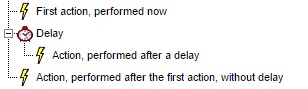
Actions placed as children of the Delay in the event tree will have their execution delayed by the period specified in the Delay. The delay will schedule the child actions (shown indented in the tree) to be executed later, and the current event will continue to execute any actions below the delay (not indented).
Why delay?
Often you want to do things immediately, but there are lots of cases when it’s useful to delay
Here are some examples:
- A user signs up for some information. You email the information immediately, but you want to send another email a few days later to ask if they have questions.
- You want to email customers a few days after they purchase to ask them to review your service and provide feedback, or to give them an offer on related products.
- A customer purchases a subscription, and you want to email them shortly before it expires to remind them to renew.
- You are writing a set of news releases (or blog postings) to be released at different times in the future, and you want to have emails or tweets sent out coincident with them becoming available.
- A user subscribes to an online course, consisting of a set of weekly emails. Each user gets the same emails, but on their own individual schedule based on when they signed up.
Configuring the length of delay
There are a number of ways to specify how long the delay should be – or when the delay should end.
Settings
Delay tab
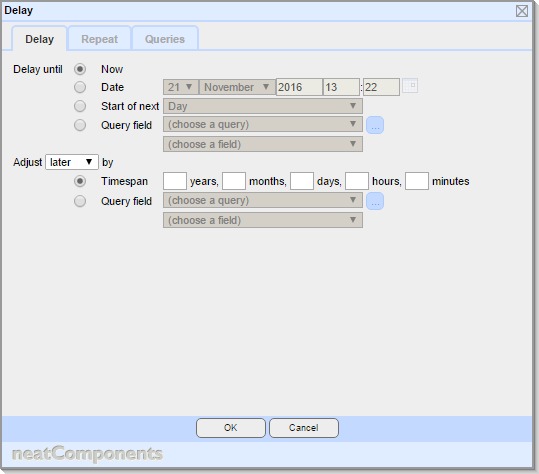
Delay until
This defines the moment when the delay should end, and child actions should start to be executed.
Choose:
Now
No delay – but useful when adjusted – see below
Date
Specify a date and time when the delay should end.
Start of Next
Choose from Day, Month, Year
Query field
Choose a query and field that contains the date and time to be used
Adjust
Select 'later' or 'earlier' to define the direction the adjustment should be made in, relative to the end-point defined above.
Timespan
Enter an explicit timespan
Query field - choose a query and field that contains a timespan to be used
To use no adjustment, choose Timespan and leave the timespan fields blank.
Repeat tab
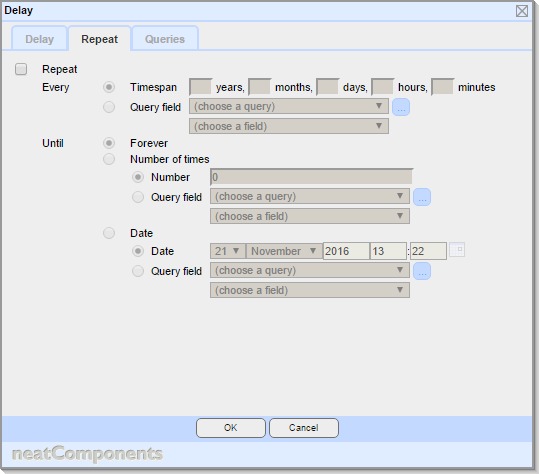
Repeat
To enable repeats, check the Repeat checkbox
Every
Choose how often the child actions should be executed:
Timespan
Enter a timespan for the interval between executions
Query field
Choose a query and field that contains a timespan to be used
Until
Forever
The child actions will be repeated an unlimited number of times
Number of times
The child actions will be repeated the specified number of times. Choose:
Number
Enter the number of times to repeat
Query field
Choose a query and field that return the number of times to repeat
Date
The child actions will be repeated until the specified date. Choose:
Date
Enter the date after which the child actions will not be repeated
Query field
Choose a query and field that return the date after which the child actions will not be repeated
Queries tab
This tab allows you to specify one or more queries in support of the values on the other tabs
The underlying Queries must first be configured in Query components
Add, Edit and Remove buttons allow for queries to be added to the dialog. This does not affect the underlying Query components themselves, just their inclusion on this dialog.
Each entry here is shown as a Query Embed dialog
The options shown on this dialog is a simplified version of the general Query Embed dialog shown when embedding a Query on a text surface, with the following differences:
- There is no need to specify a View.
- On the Records tab, when specifying values, and dependent on the datatype involved, the list of parameters will also include as options:
- Event Parameters
These are parameters passed to the current event - Custom Event Parameter
These are custom defined parameters passed to the current event - Current Record ID
This is the record ID of the current record the condition is being executed within
- Event Parameters
Usage notes
Once the delay, with any adjustment has been computed, this results in a date and time, at which time the system return to the event tree, and looks to see what actions to execute.
If the moment turns out to be in the past, then this will happen straight away (although events are evaluated each minute so in practice there may be a delay of up to 60 seconds).
If a number of delays end at the same moment, the system will work through them as quickly as it can, but they won’t all happen at the same instant, and you should not make assumptions about the order of execution.
How delays affect when criteria are evaluated.
The event tree can contain multiple criteria objects, delay objects, and action objects.
The system starts at the top of the tree, and executes each object in turn. When a delay object is encountered, evaluation of objects further down the tree is postponed until the delay is over. This means that if the values that the criteria are based on change during the delay, the new values will be used for the subsequent evaluation, not the original values.
Cascading delays
You can chain multiple delays together to gain more flexibility than a single delay provides.
For example:
Imagine you want to allow a client to specify that they want to receive a reminder email n days before the end of the next month – where they can specify the number of days, and you want the email to be sent at 10am
First delay:
Delay until Start of next Month
Adjust earlier by Timespan from a Query field
Second delay:
Delay until Now
Adjust Later by 10 hours
Preservation of context
Despite the delays postponing execution of actions, actions retain access to the context of the original triggering action, including the user id, ip address of the user triggering the event.
Delays are persistent – that is, they will survive server reboot or downtime – any action scheduled for execution whist the server was off will be executed as soon as it returns to service.
Cancelling a delayed action
Once a delay has been executed, the evaluation will resume once the delay period is over. This of itself cannot be cancelled. However, you can add a Criteria action as child object of the delay, to be executed when the delay is over, and use this to determine whether the subsequent actions should be executed or not.
For example, if the delayed action is to send an email to prospective customers, you might want to add a criteria to see if they have in the meantime asked not to be emailed.
Timezones
The dates and times used in the delay system are based on the timezone of the server, which will normally be set to GMT / UTC
If you want to use a different timezone, you can simply use a delay to add the requisite number of hours. For example, to get to Eastern Standard Time, you would add a Delay of:
Delay Until: Now
Adjust Later by 5 hours
Timespan fields
If the Adjust is set to “Later”, then positive values against the various fields of the timespan work forward in time. However you can use negative values for some or all of the fields.
For example, to adjust later by a month less two days (perhaps to give two days notice of something happening in a month’s time), you would set a timespan of:
0 years, 1 months, -2 days, 0 hours, 0 minutes.
You can leave fields blank instead of entering zeros.
Changing the Adjust “Later” to Adjust “Earlier” silently reverses the sign of each field in the timespan field when it performs the calculations. This is useful if you need to set an “Earlier” adjustment, but want to allow a user to enter a timespan in a form field without worrying about having to enter it as a negative.
Making something happen 'earlier'
A common requirement is to make an action happen a set time before another action. The key to understanding how to configure this is to note that delays – even when configured to do something ‘earlier’ can only delay. There is no such thing as a negative delay (that would imply time-travel).
So to make one action happen before another you need to configure two delays, one of a shorter duration than the other. It is quite acceptable to include an ‘earlier’ aspect in the configuration, but for the time difference between the two actions to be maintained both delays must have some duration into the future.
Copyright © 2026 Enstar Systems Inc. All rights reserved |