The format of an image field specifies how it should appear.
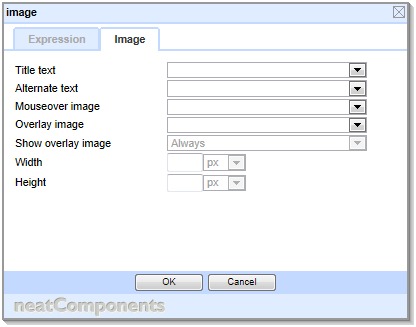 Title text Title text
Select a Text field containing text to be used as the Title attribute of the image. Use for accessibility and SEO purposes.
Alternate text
Select a Text field containing text to be used as the Alt text attribute of the image. Use for accessibility and SEO purposes.
Mouseover image
Select an Image field containing an image to be displayed instead when the user's mouse is hovering over the image. This can be used to provide a dynamic 'button' effect.
Overlay image
Select an Image field containing an image to be displayed on top of the image. This image is usally partially transparent to allow the underlying image to show through. It is useful for providing edges or rounded corner effects.
Show overlay image
Allows you to specify when the overlay should be displayed: Always, When mouse over, or When Mouse not over.
Preserve overlay aspect ratio
Allows you to specify whether the overlay should be stretched or not to match the underlying image
Size
Allow the size of the image to be specified.
If 'Apply size to' is set to "Image":
- If only one dimension is given then the image will be sized proportionally – the aspect ratio will be maintained.
- If both dimensions are given, then the image will be forced to that size, even if that affects the proportion.
If 'Apply size to' is set to "Bounding box":
- The image will be sized and centred to fit within the dimensions specified, maintaining aspect ratio.
- If the image is smaller than the bounding box it will not be enlarged.
- Mouseover images, if specified, will be centred and maintain their aspect ratio.
Server-side image resizing
If the size is specified in pixels (px) then the system will attempt to resize the image at the server before delivering the resized image to the browser, to increase page rendering speed, and to reduce the aliasing affects caused by poor browser resizing.
GIF images may be delivered as PNG files to preserve any transparency in them.
Images specified to be sized above 5000px in either dimension will not be resized at the server, but will be resized by the browser. | 


