 |
clearString neatComponents
|
|

|
clearString neatComponents
|
| |
|
clearString neatComponents Configuring email |

| ||
| Installing and Support | |
Configuring email | ||
| |
Before you start... the Windows SMTP service must be active.
This is managed in the Windows services manager. If the service is not already running you will need to enable it yourself. Read more...
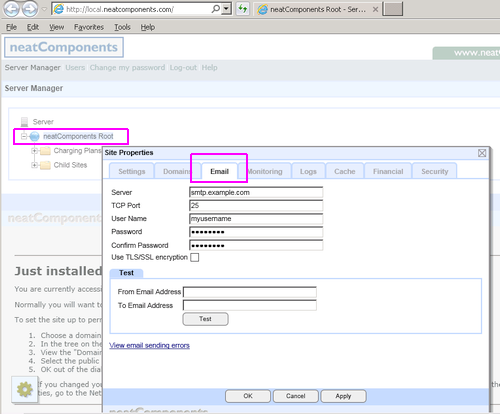
Set up neatComponents email service.
neatComponents makes extensive use of email to transfer data, and also to provide a password recovery service.
You should configure the email service promptly after installing neatComponents.
Configuration - Normal settings
You would normally configure neatComponents to send email messages to your corporate mail-server or your Internet Service Provider's email service for onward delivery.
Dialog location
You configure this setting at the main
Site Manager | Globe node (right-click) - Email-tab
The minimal entry will be to set the Mail Server (mail-host) and Port - normally 25.
Mail Server: smtp.example.com
Mail Server Port: 25
You may also add SMTP Authentication (User Name & Password) and change the SMTP port if required by your ISP.
Do not enable 'Use TLS/SSL encryption' unless required by your ISP or mail server.
Default settings
If your version of Windows includes an SMTP server (on 127.0.0.1 - localhost) then nC uses that by default. You will probably need to change this default to a full mail server to successfully send email.
Use real email addresses
Always use real, valid email addresses when testing. Do not, for example use: asdf@example.com as most mailservers will do a reality check before accepting or sending a message.
Testing
Use the [Test] facility in the dialog shown above to send an trial message.
Always click the [Apply] button after making a change.
This will show whether you have access to mail services on the machine and whether you have configured the connection correctly . Send a test message to your regular email account. If you receive it within a few minutes or so, then all is well - don't forget to check your 'spam folder' too.
If you do not receive your test message within a reasonable time you will need to resolve the issue. Click the 'View email sending errors' link in the dialog to see details of any errors between neatComponents and your email server.
Common problems
CDO.Message.
If you see an error similar to:
'The transport failed to connect to the server.;from: CDO.Message.1'
that means there is not a mail server available at the Server location set in the dialog shown above. This can happen if you do not enter the server location correctly, or if you leave the default value of 127.0.0.1 and there is not a mail server on the same machine as neatComponents.
Port blocked.
It is often necessary to open Port 25, or other designated port, on your firewall or router.
If you think this is an issue we explain how you can test using Telnet.
Anti-virus software.
Norton, Symantec etc may block email traffic either on a port-basis (above) or on a program-basis. You will need to set an exception in your anti-virus software to allow your email. Many anti-virus systems will have a 'pop-up' asking for authorization, or something similar.
Selecting a mail server
In a corporate or organization environment you should send messages via your company's email server. You should talk to your Mail Administrator to ensure your settings are correct, and that your messages will not be rejected.
Small business and home users can install their own mail server, such as Mailtraq, or send messages to their ISPs SMTP service just like using Outlook™ or any other regular email client.
If you don't have a regular SMTP service available then there are free alternatives.
Using Google Gmail as a free SMTP server host
Google allow you to send mail via their mail server if you have a free account with them.
Read the knowledgebase article: 'How to use Gmail as a SMTP host' .
Amazon Web Services and Email Servers
You can install your own email server on the same EC2 instance as neatComponents. We fully support Mailtraq (bundle pricing available) and it should work with minimal configuration beyond its own getting started wizard.
If you are running a mail server on an EC2 instance then you will need to notify Amazon using this form...
The form will arrange for rDNS records  to be associated with your Elastic IP address, to ensure your outbound mail does not get blacklisted.
Installing and Support In this section |
|
Installing and Support In this section: |
|
Copyright © 2025 Enstar LLC All rights reserved |